HDD storage not detected
What to do if HDD storage is not detected
If your storage server does not show the additional HDD storage, that does not automatically mean the disk is missing. In many setups, only the NVMe boot disk is mounted by default. Additional HDD storage often still needs to be checked and mounted manually.
1) Check with lsblk
First, check which disks the system can actually see:
lsblk -o NAME,SIZE,TYPE,MOUNTPOINTS,FSTYPEWhat to look for
- Is only the NVMe boot disk mounted, for example
nvme0n1with partitions such as/or/boot? - Is an additional HDD shown, for example as
vdb,sdb, or similar? - Does that HDD have no mountpoint?
If the HDD appears in lsblk but is not mounted, that is usually the actual issue: the additional storage exists, but still needs to be mounted.
Then use this guide:
2) If the HDD does not appear in lsblk
If no additional HDD appears in lsblk, check the dashboard to see whether the disk still needs to be added there.
Dashboard steps
- Open your storage server details in the dashboard.
- Go to the
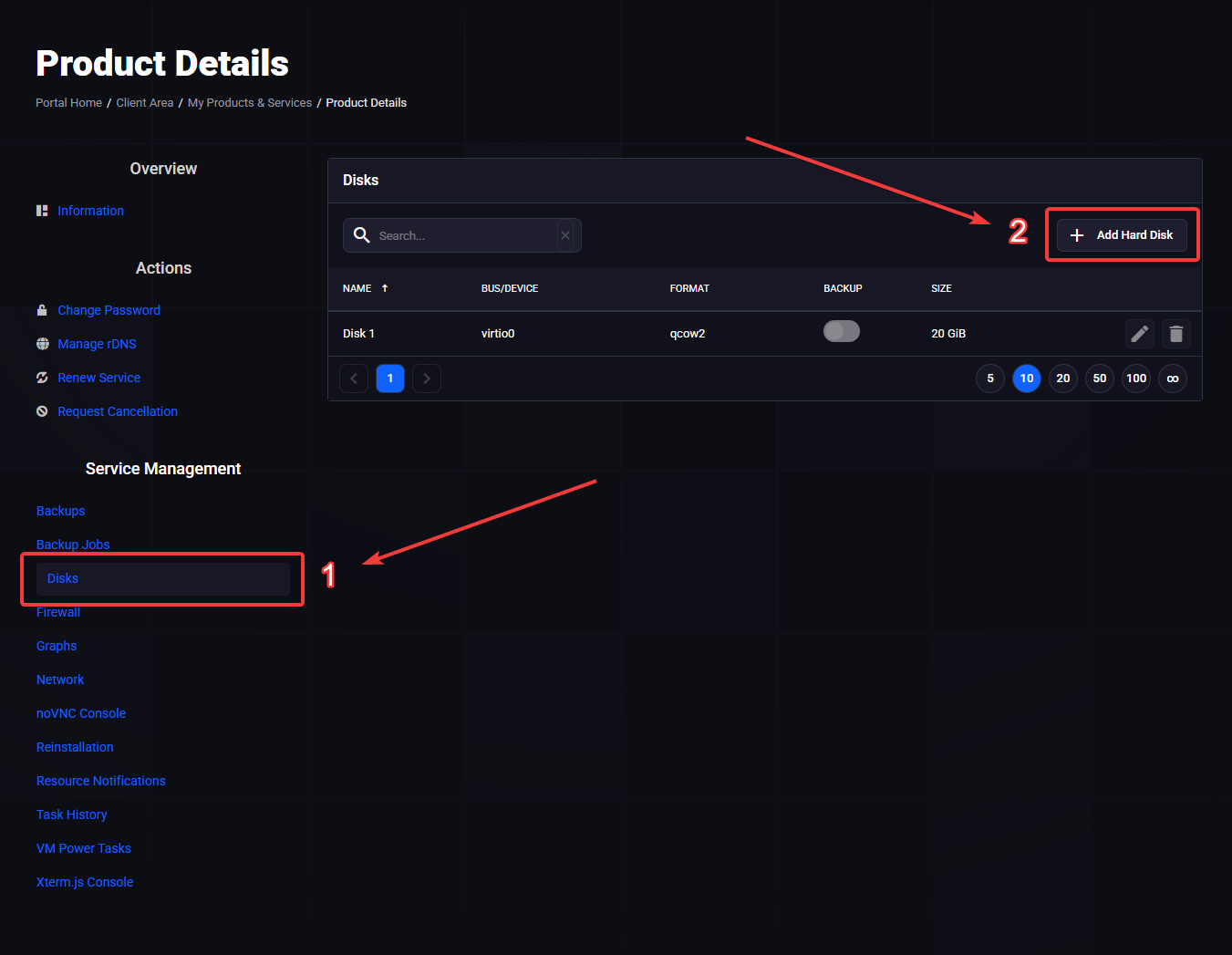
Diskssection. - Check whether an additional HDD is available or can be added.
- Add the HDD if that option is shown.
- Wait until the process finishes.
- Connect again via SSH and run
lsblkonce more. - If the HDD is now visible, mount it afterward.
In the dashboard, open Disks under Service Management (1), then click + Add Hard Disk (2).
In the Add Hard Disk dialog, enter the HDD size in GiB (for example the capacity included with your Storage VPS) and select local-HDD as the storage type, then click Confirm.

If the HDD becomes visible after adding it, then use this guide:
3) If neither helps
If the HDD is neither visible in lsblk nor available to add in the dashboard, please contact support.
Useful information for the ticket:
- Output of
lsblk -o NAME,SIZE,TYPE,MOUNTPOINTS,FSTYPE - Name or ID of the affected server
- Short note that you already checked the
Disksarea in the dashboard
Last updated: 2026-06-09